AI series generator
AI Series Generator
Give your characters another story. Create an episode, continue from that project and bring saved cast references into the next one. You write the next part, review the designs and generate each episode's own sequence of clips.
Review the price shown for each step. Pay with Gems; no subscription required.
See returning characters across scenes in one finished story
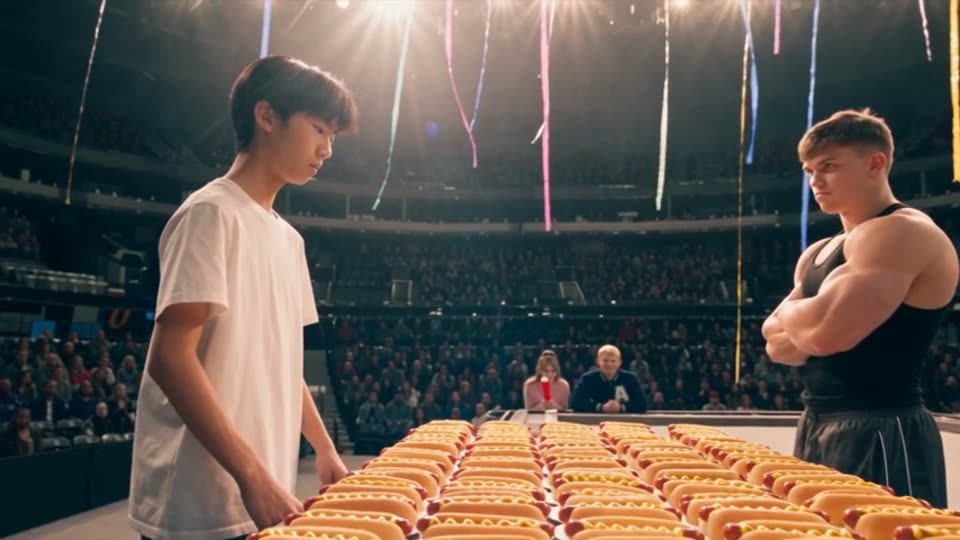
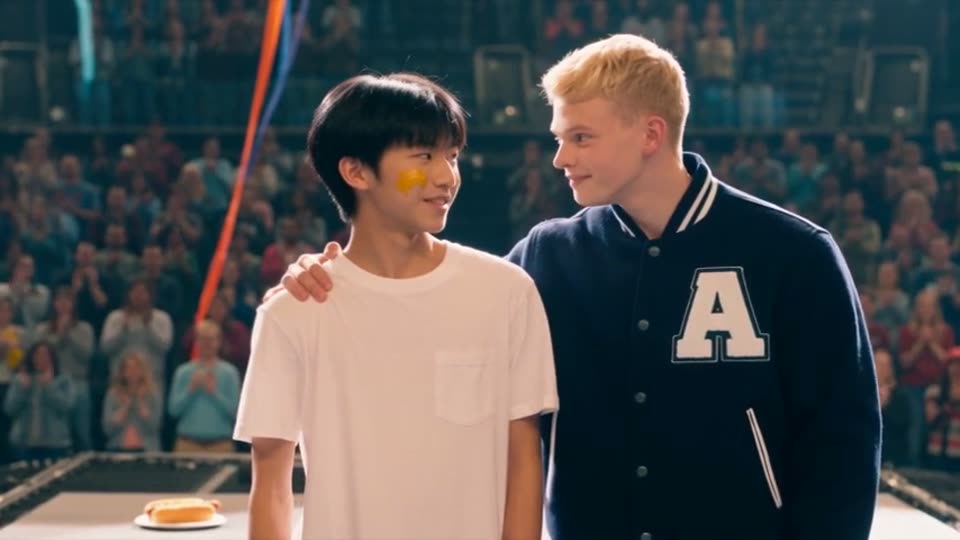
These are clips from one Hot Dog King production: Mike, Bella and the quarterback return as the story moves from the corridor to the arena and podium. The frames show continuity within that story. A new episode starts with new story text and its own clip plan.


How it works
- Step 1
Create the first episode
Develop the first story, review the cast references and generate its planned clips.
- Step 2
Start another episode
Use Make another episode with this cast from the saved project, or + New Episode in your series.
- Step 3
Add the next story and review the cast
Paste the next part, confirm the saved designs you want to reuse and plan this episode's clips.
- Step 4
Generate, review and assemble
Check the displayed cost, generate the new clips and assemble the episode after reviewing continuity.
Continue from the episode you already made
Open your saved story project and choose Make another episode with this cast, or use + New Episode from an existing series. Paste the next part of the story in the new workspace, then review the returning characters and locations before planning.
Saved designs from the previous project can be pre-selected for the continuation. If a needed design is offered as a library suggestion, choose Use to select it. Check the selection and reference images, particularly when a new episode introduces a new character, location or outfit.
A series grows one episode at a time
Each episode has its own story and sequence of clips. Plan the next conflict, reveal or resolution in the text you provide, including any earlier events the audience needs to understand. Review how that story is divided into scenes before generating.
Use the series for a recurring comedy cast, a continuing short drama or a story channel with returning characters. Choose a format and visual direction that suit the show, and check the available settings for each new production.
Review and finish each episode
Saved references help guide a returning character's appearance, but generated faces, clothing and details can still drift. Compare new clips with the reference designs and earlier footage, then refine the clips that need work.
Review the displayed price and Gems for each paid stage. Generate the episode's clips, assemble them in the Video Editor and export the finished video for your chosen channel.
Questions
How do I make another episode with the same characters?
Continue from your saved story project using Make another episode with this cast, or choose + New Episode in a series. Paste the next story and review the saved references that are pre-selected or offered as library suggestions before generating.
Is each generated clip a separate episode?
An episode is one story project that can contain several clips. Those clips are the scenes you assemble for that episode. To create another episode, start a continuation with new story text and a new clip plan.
Do I need to explain what happens next?
Yes. Supply the next part of the story, including relevant events and changes to the cast or setting. Reusing saved reference designs helps with visual continuity; review the new script and clip plan to check the story's continuity too.
Will a returning character look identical in every episode?
Reference designs help preserve recognizable features, but AI outputs can vary. Review the references selected for each production, compare the generated clips and regenerate those that drift.
What does a series cost?
Paid actions use Gems. Check the price and Gems shown in the workspace for the action you are about to run; costs depend on the selected settings and amount of content. Review each stage separately, including any paid planning or preparation, and check the current pricing page for available Gems options.
More answers in the FAQ and current rates on the pricing page.
Try it with your own story
Bring your story, review the available steps and prices, then choose what to generate.
Start your first episode